Skip to content
عربي
Menu

Every reading. A clearer meaning.

A monthly reading for billing, or a tank level depending on the device and setup. Understand the value and its source, then follow the bill or status.

BLDNG360THE APPLICATION · DESKTOP & MOBILE
Original captures
Building committee · Desktop
Building consumption and tanksApplication capture · September 2026 · Arabic UI
Resident · Mobile
Apartment billed meter readingApplication capture · October 2026

Readings and consumption

Building consumption and tank levels in the committee dashboard; previous and current readings and billed consumption on the resident screen.

2 / 2

Original captures with synthetic data from different periods and accounts; not synchronized records or a live app. Select a screen to enlarge it.

From manual reading to bill review

Each step has its own role. These are actual demo application screens.

1. Enter the reading

The concierge selects a meter and enters its current reading for a specific month. Tank level is a separate field from electricity readings.

Concierge · Enter a manual reading
Actual application interface · Synthetic demo data

2. Choose the calculation method

The committee chooses a kWh rate, proportional consumption or manual allocation. Water has separate options: well, shared tank or consumption meters.

Committee · Bill calculation method
Actual application interface · Synthetic demo data

3. Review the monthly bill

The committee reviews inputs and readings before issuing the bill. This example is a draft with a reading flagged for review; the capture does not show it being approved.

Committee · Review the monthly bill
Actual application interface · Synthetic demo data

Receiving a reading, approving it and alerting are separate steps

The smart path needs a meter and a compatible gateway or integration. These captures show the committee interface, not gateway installation or a live connection.

An incoming reading is not an approved bill

The screen shows each device, its last received value, age and last approved reading. This example has an empty review queue but retains device history; an empty queue does not prove device health.

Committee · Incoming device readings
Actual application interface · Synthetic demo data

Warning and critical thresholds differ

This water tank example uses a 25% warning threshold and a 10% critical threshold. These are tank settings, not proof of a delivered phone notification; alert state and delivery need separate verification.

Committee · Water tank thresholds
Actual application interface · Synthetic demo data

Captured on 24 October 2026 using historical synthetic data. Values can differ across screens; these do not demonstrate a synchronized calculation cycle or a completed save. Resident names and some data labels remain in their original language.

Everyday tasks, organized around your needs.

Electricity and billing

Reading, consumption and period, then bill details, with resident and committee roles kept distinct.

Water and tanks

Level, date and status from available values, with human review and committee follow-up when needed.

Fuel and generator

Available fuel readings, run hours, oil and records, without remote generator switching.

In-app status and alerts

The water page shows available conditions based on readings and setup. Not every threshold is assumed to trigger a phone notification.

Supplier follow-up

The committee uses the desktop maintenance directory to contact a supplier. This is not an automatic supply order.

Device compatibility

Sensor type, connectivity, power and update timing are reviewed before smart monitoring.

Information is easier to return to.

Records and interfaces connect committee work with the resident view, within available permissions. Explore features by role, service family and building or compound scope.

Open the feature library ↗
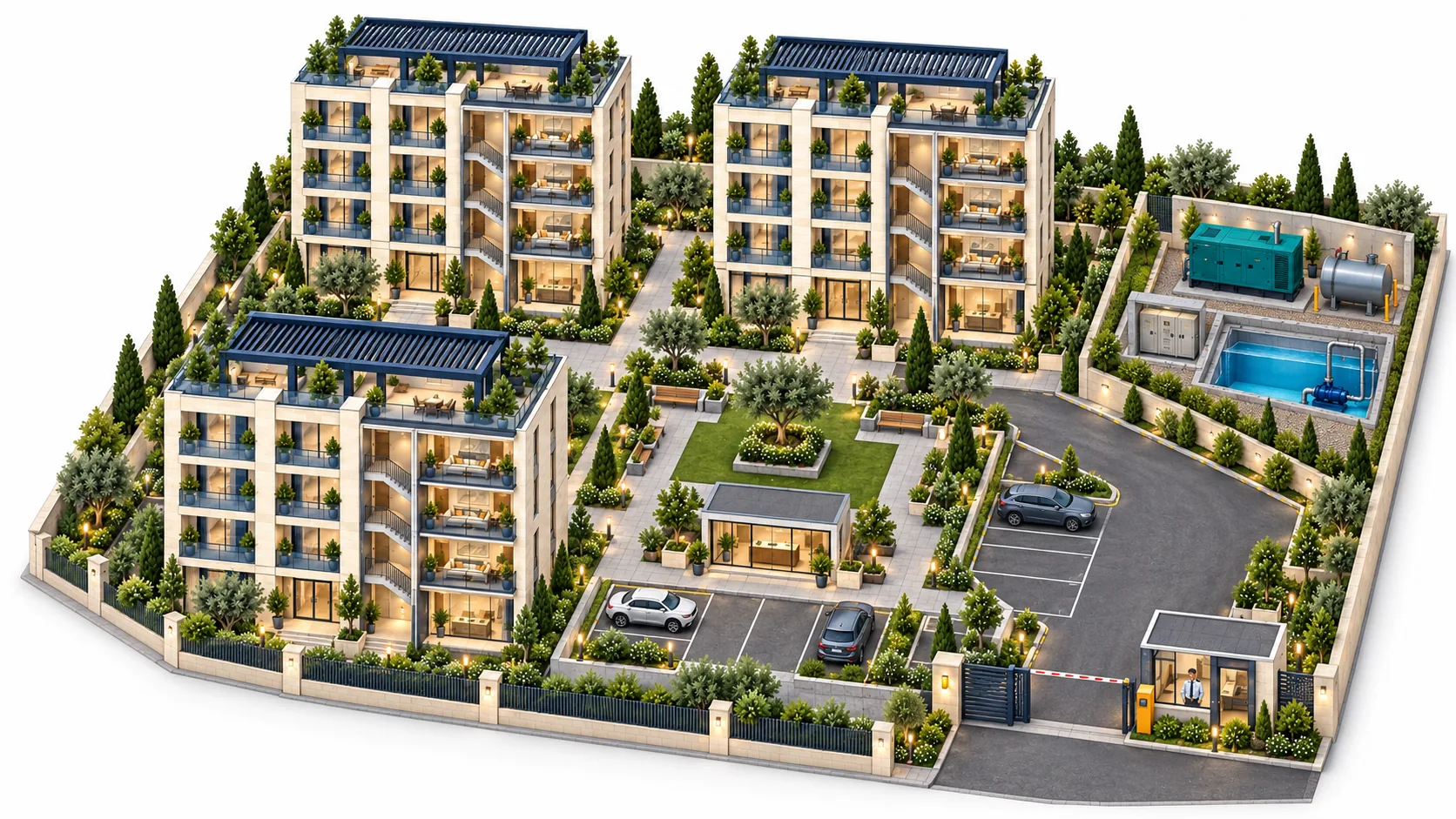
Explanatory illustration of building and compound services
Illustration; services depend on application setup.

Start with your building.

One building or an entire compound. Explore the interfaces, then prepare your needs for a suitable demonstration.

Explore all features
BLDNG360

Start with your building.

Prepare your request details. Direct submission and appointment booking await the approved contact integration.

Downloads a request file to your device; no information is sent to a server.
Open the Current App ↗
Submission and booking integration pending

ACTUAL APP SCREENS · SYNTHETIC DEMO DATA